Connecting your Zocdoc profile to HiFiveStar allows you to streamline your reputation management by pulling in patient feedback and centralizing your reviews. Follow this step-by-step guide to complete the integration in minutes.
1. Log in to your HiFiveStar Account - Access your HiFiveStar dashboard by entering your credentials on the login page.
2. Access the Settings Menu - Once logged in, locate the 'Settings' option on the main navigation dashboard.
3. Navigate to the Integrations Tab - Within the Settings menu, click on the 'Integration' section.
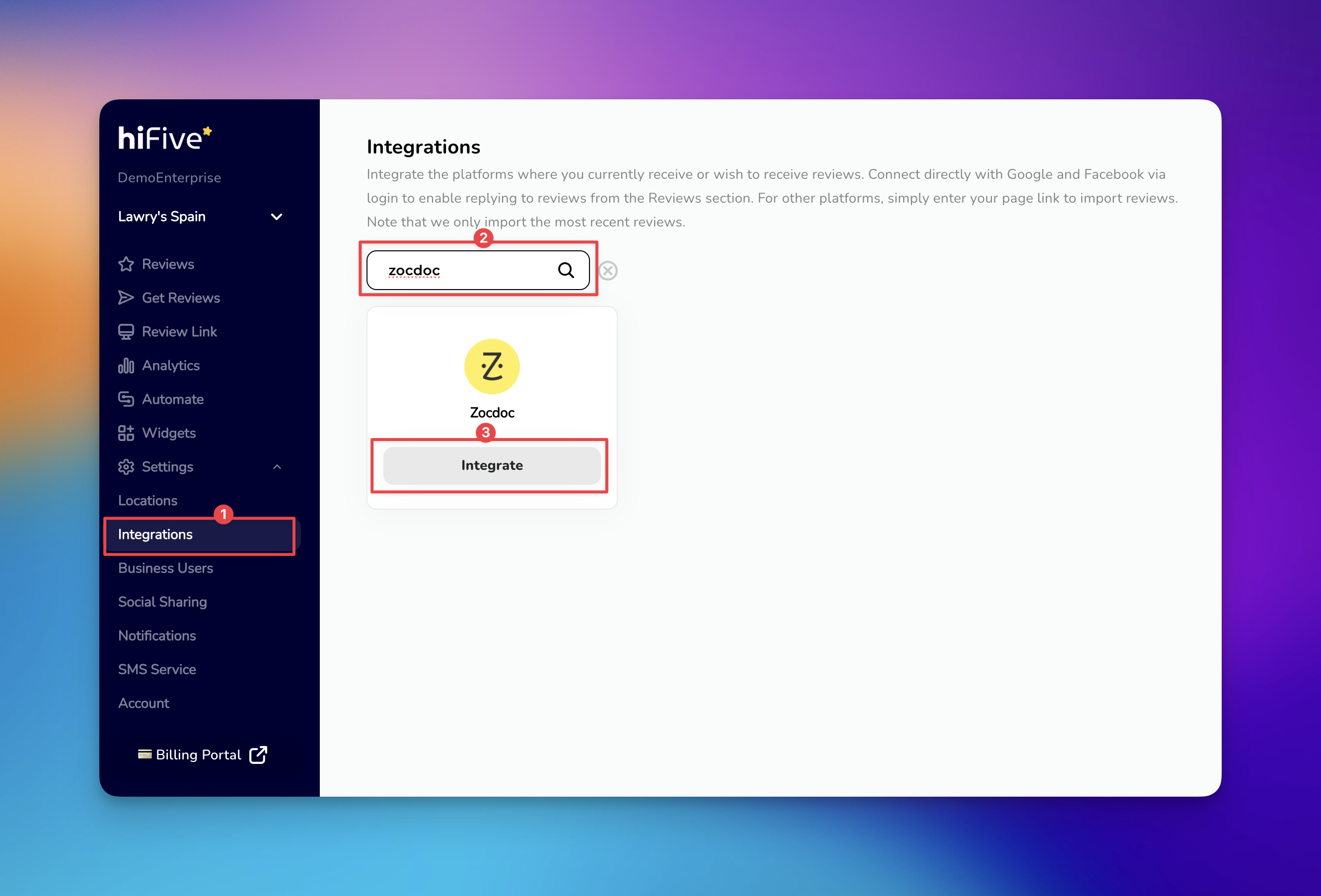
4. Locate Zocdoc - You can find Zocdoc by scrolling through the list of available integrations. For a faster experience, use the Search Bar at the top of the page and type Zocdoc.
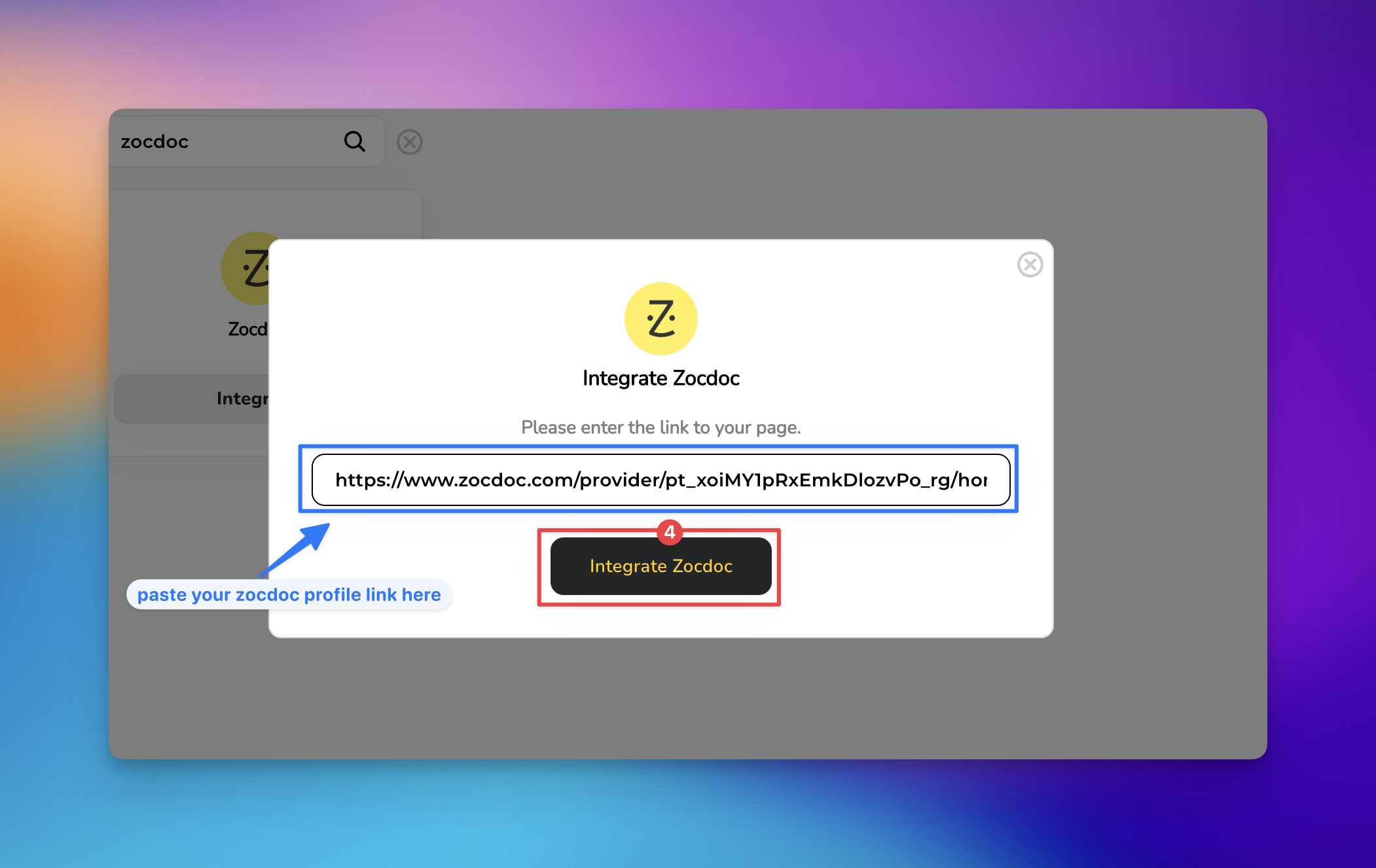
5. Enter Your Zocdoc Profile Link - Click the 'Integrate' button and a window will appear asking for your credentials. Copy and paste your public Zocdoc profile URL into the designated field.

https://www.zocdoc.com/doctor/your-name-123. Make sure the link is active and points directly to your professional profile.6. Finalize the Connection - After pasting your link, click the 'Integrate Zocdoc' button. The system will verify the link and finalize the synchronization between Zocdoc and HiFiveStar.
If your profile fails to connect, please verify the following:
The Zocdoc URL is correct and does not lead to a "404 Not Found" page.
Your internet connection is stable during the authentication process.
Your current HiFiveStar plan may have reached its integration limit. Upgrading allows you to add more integrations and locations. Check our pricing to learn more.
Will my historical Zocdoc reviews show up in HiFiveStar? Yes, once the connection is established, HiFiveStar will begin syncing your existing reviews so you can manage them from your dashboard.
Can I integrate multiple Zocdoc profiles?
Yes. Each Location in HiFiveStar can connect one Zocdoc profile. To add another, switch to a different Location and repeat the integration.
What should I do if the "Connect" button doesn't work? Double-check that the URL is pasted correctly and does not include extra spaces at the beginning or end. If the issue persists, ensure your Zocdoc profile is set to "Public."
How often does the data sync? HiFiveStar typically syncs with integrated platforms automatically. If you don't see a recent review, you can usually trigger a manual refresh from the Integration settings page.
How to Gain Access to Your Facebook Business Page for HiFiveStar Integration
Learn how to gain access to your Facebook Business Page in just a few simple steps.
Linking Google Reviews with HiFiveStar
Linking Google Reviews with HiFiveStar