US mobile carriers require every business that sends text messages to be registered. Without it, texts get filtered and quietly never arrive.
HiFiveStar files the registration for you. You fill in one form, and once the carriers approve it, your review requests go out by text from a local number of your own. Your email review requests keep sending while you wait.
A US business with an EIN. This registration is for US businesses. A sole proprietor without a tax ID, or a business outside the US, can text through its own Twilio or Telnyx account instead: see Twilio & Telnyx Integration.
A paid plan, Core or higher. Texting from a number of your own is not part of the free trial, but during the trial you can text through your own Twilio or Telnyx account. Until your plan includes texting, the page shows the plan you need instead of the form. If your plan is set to end, texting can't be set up: keep your plan under Billing to register.
Your IRS EIN letter (CP 575 or 147C). The carriers check your legal business name against it.
Go to Settings › Text message registration. You can also click Register for texting on the SMS tab of Get Reviews.
Fill in Your business, field by field (each field is explained below). Where it can, HiFiveStar fills in the address, phone and website from your Google listing, so check them against your registration.
If you are the Business Owner of several locations, a box offers to use these details for all of them (8), and it may already be ticked. Your locations then share one texting number of your own, local to one of them.
Tick the box to confirm you are authorized to register the business and agree to the Terms (9), then click Save (10). Save stays grey until every required field is filled in and the box is ticked. The box starts unticked each time you open the page.
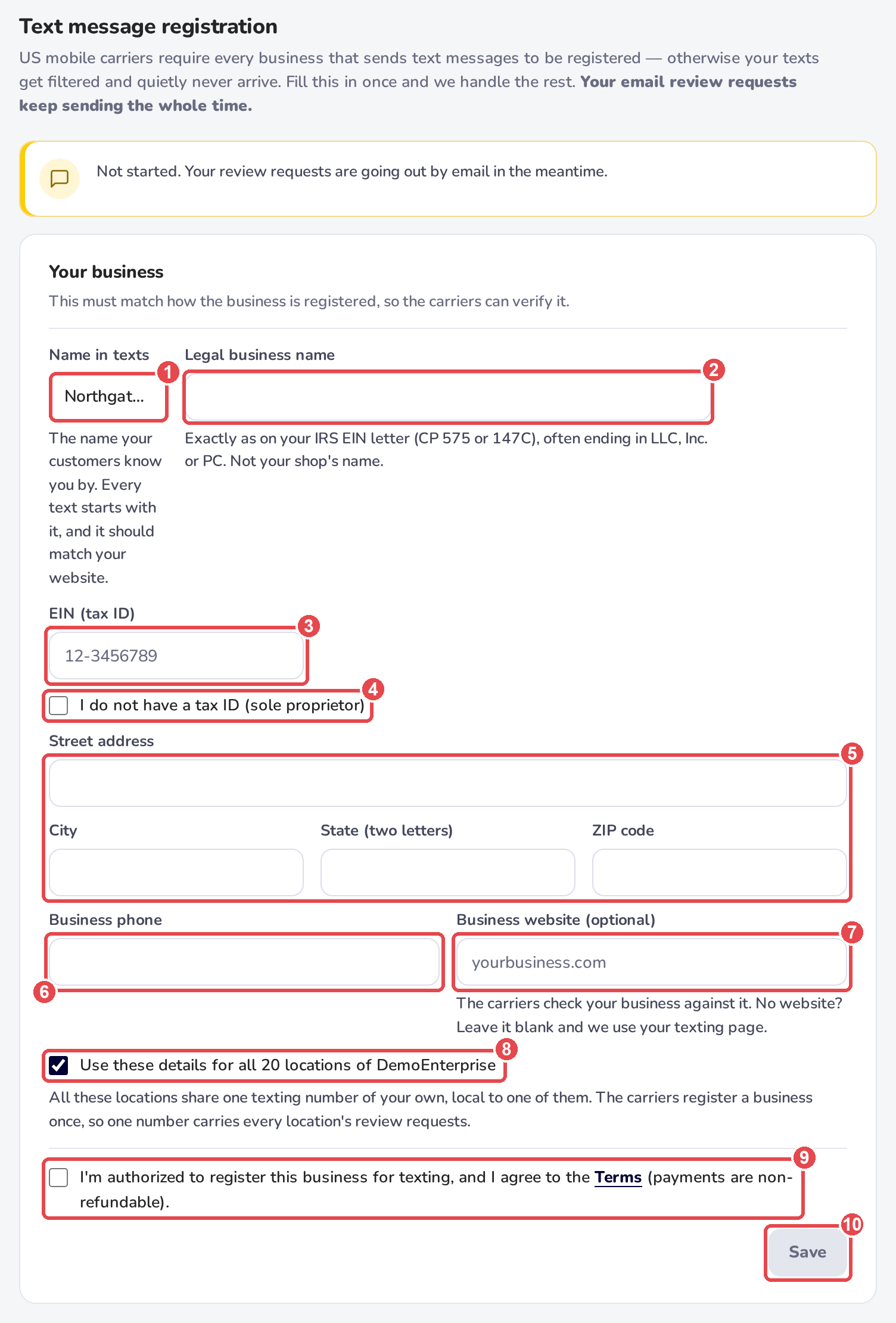
Name in texts (1): the name your customers know you by. It starts as your location's name. The carriers register your texting under it, and a customer's first text from your number names your business, so it should match your website.
Legal business name (2): exactly as on your IRS EIN letter, often ending in LLC, Inc. or PC. This is not your shop's name. If it looks like your shop's name, the page warns you.
EIN (tax ID) (3): once it is saved, it is hidden for security. Leave the box blank to keep it.
I do not have a tax ID (sole proprietor) (4): carriers only let a business without a tax ID text from a texting account in its own name, so ticking this points you to Settings › SMS Service instead.
Street address, City, State (two letters) and ZIP code (5), and Business phone (6).
Business website (optional) (7): the carriers check your business against it. No website? Leave it blank and HiFiveStar uses your texting page.
The top of the page says where your registration is:
Saved: your texting is being set up.
With the carriers now: this usually takes a few days. Some registrations take longer.
Registered with the carriers: your texting approval waits its turn. There is nothing for you to do.
Approved: your texts are sending from your own number.
Below that, the page lists the five steps of the set-up: Your details are saved, The carriers register your business, The carriers approve your texting, Your own texting number is set up, and Your texts send from your own number.
Each step has a mark. A green tick means it is done, a yellow dot means it is happening, a grey ring means it is still to come, and red means it needs your attention.
When the carriers approve your texting, HiFiveStar emails you that texting is on.
The carriers sent it back: the page says what to fix, for example that the legal name, EIN and address must match your IRS records exactly. Correct the details and save again, and HiFiveStar resubmits them.
Something went wrong on our side: we have been alerted, and there is nothing for you to change.
You need to change saved details: while your registration is with the carriers or approved, the details are locked. Click Need to correct something? to change them. Once your texting approval is filed, a changed legal name, EIN or address no longer reaches the carriers, so the page asks you to write to [email protected]. A name in texts that is filed with the carriers also changes only through support.
Texts always come from a phone number, never from a business name.
One account texts as one legal business. Texting as a second legal business on the same account is a paid add-on: write to [email protected].
Once texting is on, see Request reviews via SMS to send your first requests, and Preventing SMS Blocks and Spam Flags to keep them arriving.
