Adding your CarGurus dealership link puts CarGurus on your HiFiveStar review page, so buyers can go there to leave a review. HiFiveStar does not import CarGurus reviews yet.
This video shows our previous app. The written steps on this page describe the current one.
Follow these straightforward steps to add your dealership's CarGurus page.
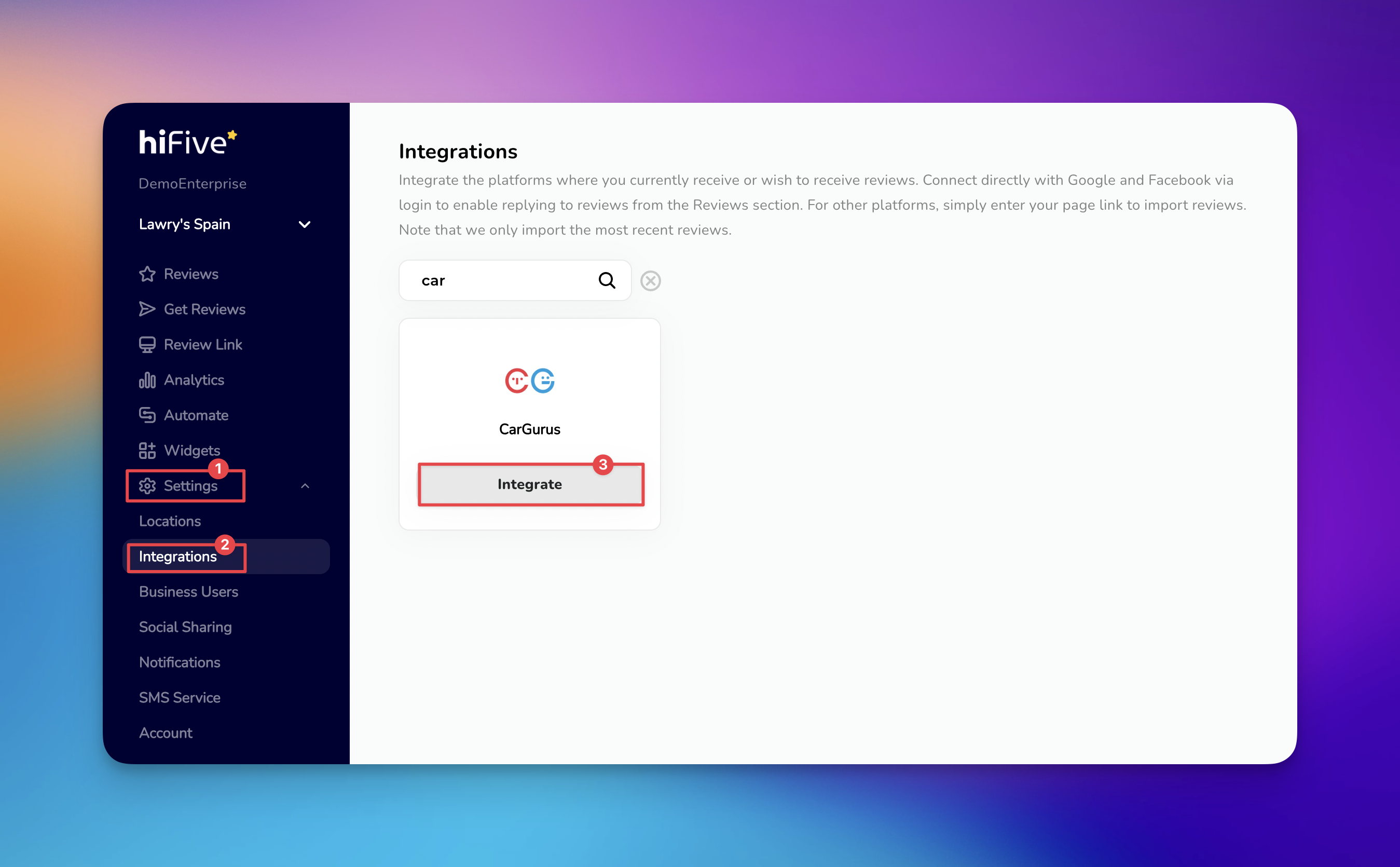
Log in to the HiFiveStar platform using your account credentials. This will open the main overview where you manage your business locations.
In the main dashboard, select the 'Settings' icon. This is the central hub for customizing how your account operates and connects with external platforms.
Locate the 'Integrations' tab under the Settings menu to display all the platforms you can add.
Find CarGurus by scrolling through the list of providers or by typing "CarGurus" into the search field. This will filter out other services so you can focus on the correct platform.
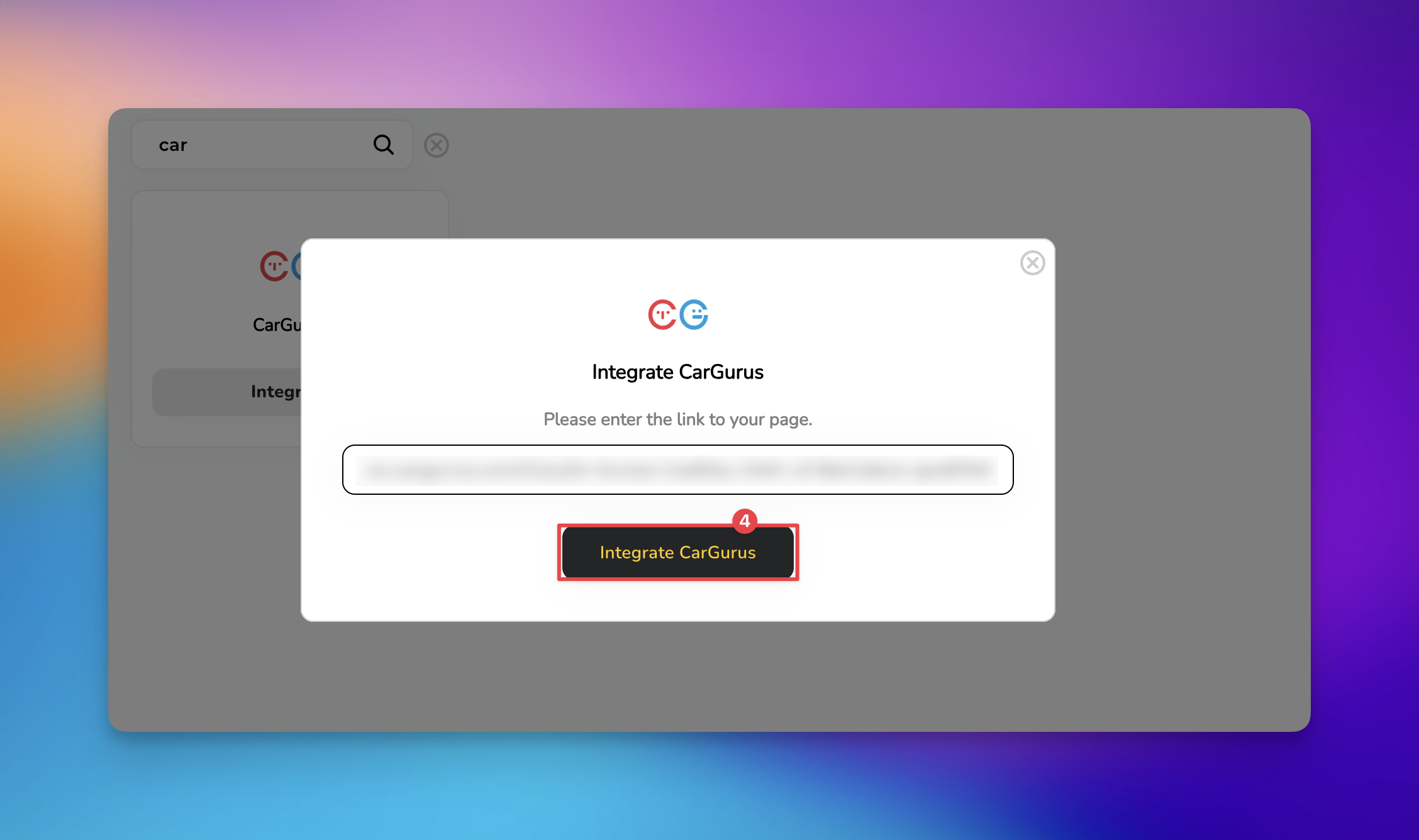
Select the 'Integrate' button next to the CarGurus logo. A specific input field will appear, asking for the web address of your dealership's public profile.
Paste your CarGurus URL into the empty field and select the 'Integrate CarGurus' button. HiFiveStar saves the link and adds CarGurus to your review page.
With these steps completed, CarGurus appears on your review page. HiFiveStar does not import CarGurus reviews yet, so new ones do not show up in your dashboard.


HiFiveStar does not import CarGurus reviews yet. Reply to CarGurus reviews on CarGurus itself.
If you encounter difficulties during the setup, consider the following common solutions:
Invalid URL Errors The most frequent cause of setup failure is an incorrect link. Ensure the URL is copied directly from your browser's address bar while viewing your dealership's public "Dealer Reviews" page on the CarGurus website.
Missing Reviews CarGurus reviews do not appear in HiFiveStar, because HiFiveStar does not import them yet.
Integrations Explained
Maximizing Your Online Presence with HiFiveStar's Platform Integrations