Integrating Capterra with your HiFiveStar dashboard allows you to centralize your software reviews, making it easier to monitor your reputation and respond to customer feedback from a single location. Follow this guide to link your Capterra business profile seamlessly.
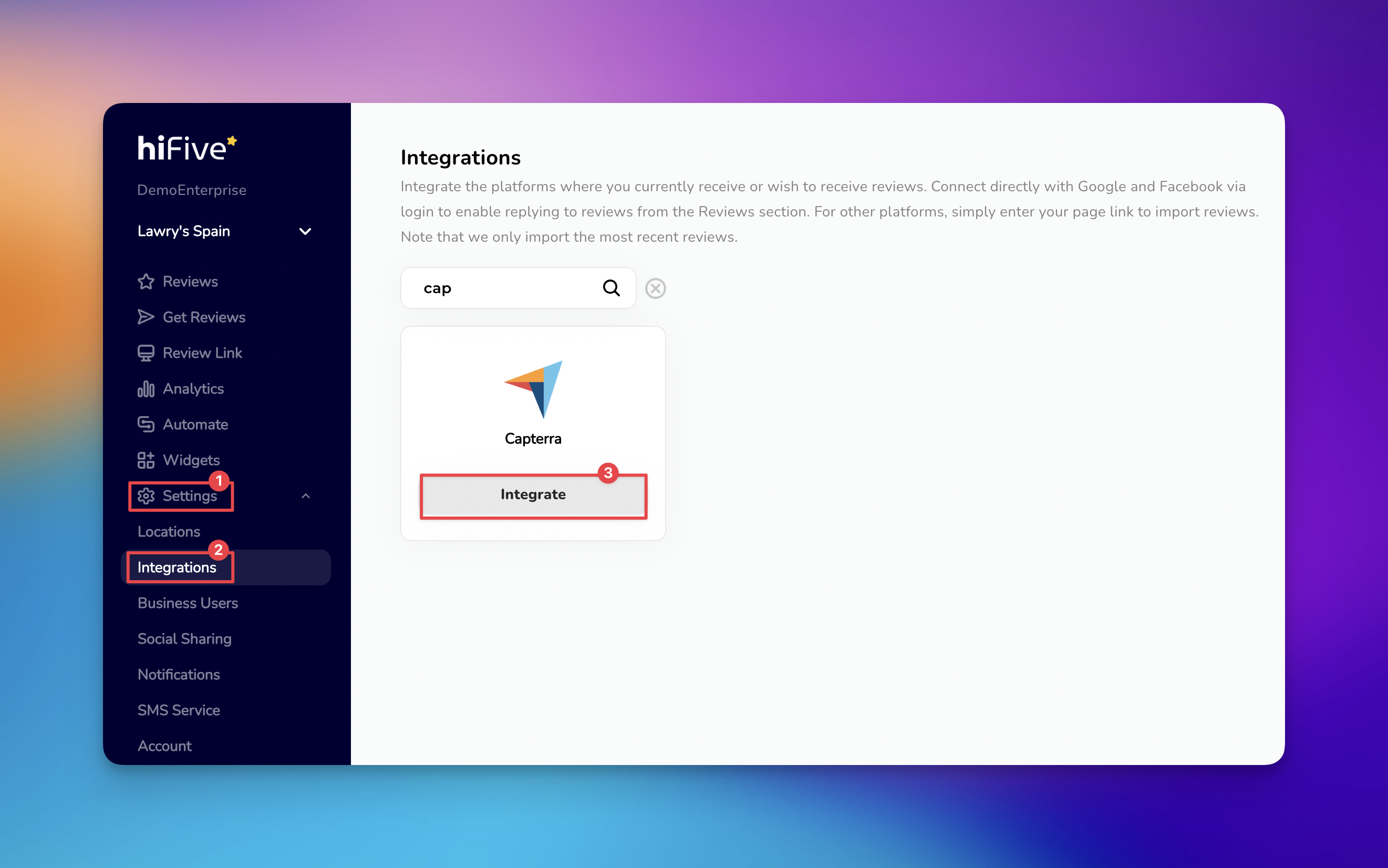
Log in to your HiFiveStar account to reach your main main dashboard.
Locate the navigation menu on the side of your screen and click on 'Settings'.
Select the 'Integrations' tab from the sub-menu. This area houses all third-party platforms supported for review monitoring.
Use the search bar at the top of the integrations list and type Capterra, or scroll through the list to find the icon.
Click the 'Integrate' button next to the Capterra logo. A field will appear asking for your specific profile link.
Enter your full Capterra Business Profile URL (e.g., https://www.capterra.com/p/123456/your-software/) into the input field.
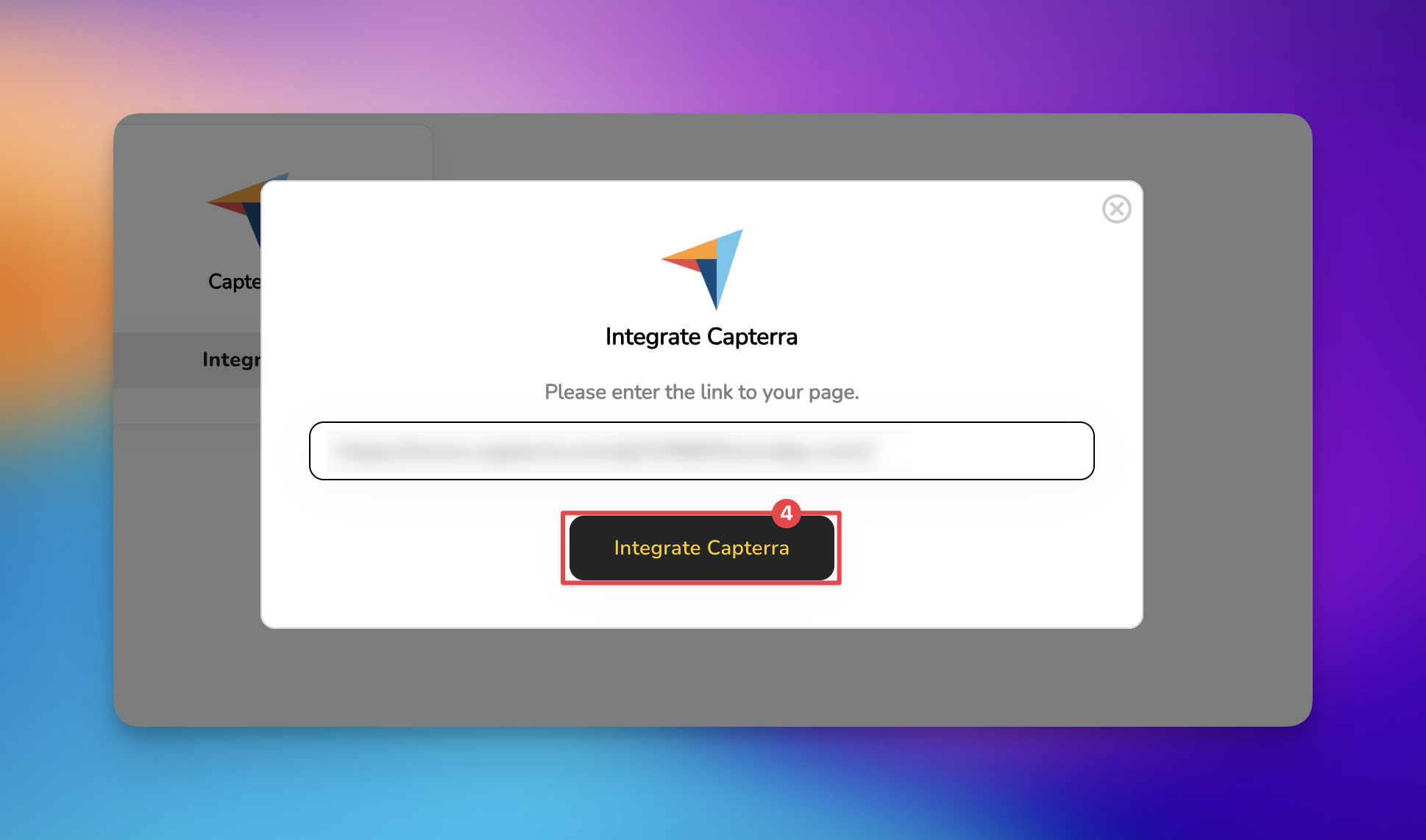
Click the 'Integrate Capterra' button to save your settings. The system will now begin syncing your existing reviews.

Avoid Using Login URLs: Do not paste the link to your Capterra vendor portal or backend dashboard. The integration requires your public-facing profile link to scrape review data correctly.
Don't Use Shortlinks: Avoid using URL shorteners (like Bitly or TinyURL). HiFiveStar needs the direct, original Capterra domain to establish a secure connection.
One Profile Per Integration: Remember that each integration field is designed for a single URL. If you have different regional versions of your software listed, you may need to set up separate instances or locations within HiFiveStar.
What should I do if my Capterra profile URL changes?
If you rebrand or change your product name on Capterra, your old URL may result in a "Connection Failed" error. To fix this, navigate back to Settings > Integrations, click the trash icon or "Disconnect" next to Capterra, and then repeat the integration steps using your updated URL. This ensures your review stream remains active and accurate.
Can I respond to Capterra reviews directly from the HiFiveStar dashboard?
Due to Capterra’s current API and security policies, direct "in-app" responding is generally restricted. While HiFiveStar will notify you of new reviews and pull the text into your feed, you will usually need to click the 'Reply' within HiFiveStar to jump to your Capterra Vendor Portal and post your official response there.
Integrations Explained
Maximizing Your Online Presence with HiFiveStar's Platform Integrations