When reviews stop coming in, first check that HiFiveStar imports that site. New reviews come in from Google, Tripadvisor, Thumbtack, Indeed, Glassdoor, Yelp, Zillow and HomeAdvisor. For other sites, the link sends customers to that site, but its reviews are not imported yet, and new Facebook reviews wait on Meta's approval of HiFiveStar's app. For the sites that do import, the cause is usually a broken link or a temporary interruption. Use this guide to identify and resolve common integration problems.
Page not found (red): the site says your business page no longer exists. HiFiveStar checks it again once a week. Press Edit on the card and paste the link to your current page.
Check the link (red): the saved link is not a page HiFiveStar can read reviews from, for example a search result, a category page or an account page. Press Edit on the card to see why, then paste your public business page. Until then, the link still sends customers to that page from your review page.
Link only (grey): a Zillow apartments page. Zillow reviews are imported from an agent profile only, so this page's reviews are not imported, but the link still sends customers there. Nothing needs fixing.
Incorrect Profile URL: The most frequent issue is pasting a URL that leads to a search result or a personal login page rather than the official public business profile.
Server Maintenance: Occasionally, HiFiveStar or the third-party directory may undergo scheduled maintenance. If the integration page does not load, the service might be temporarily offline.
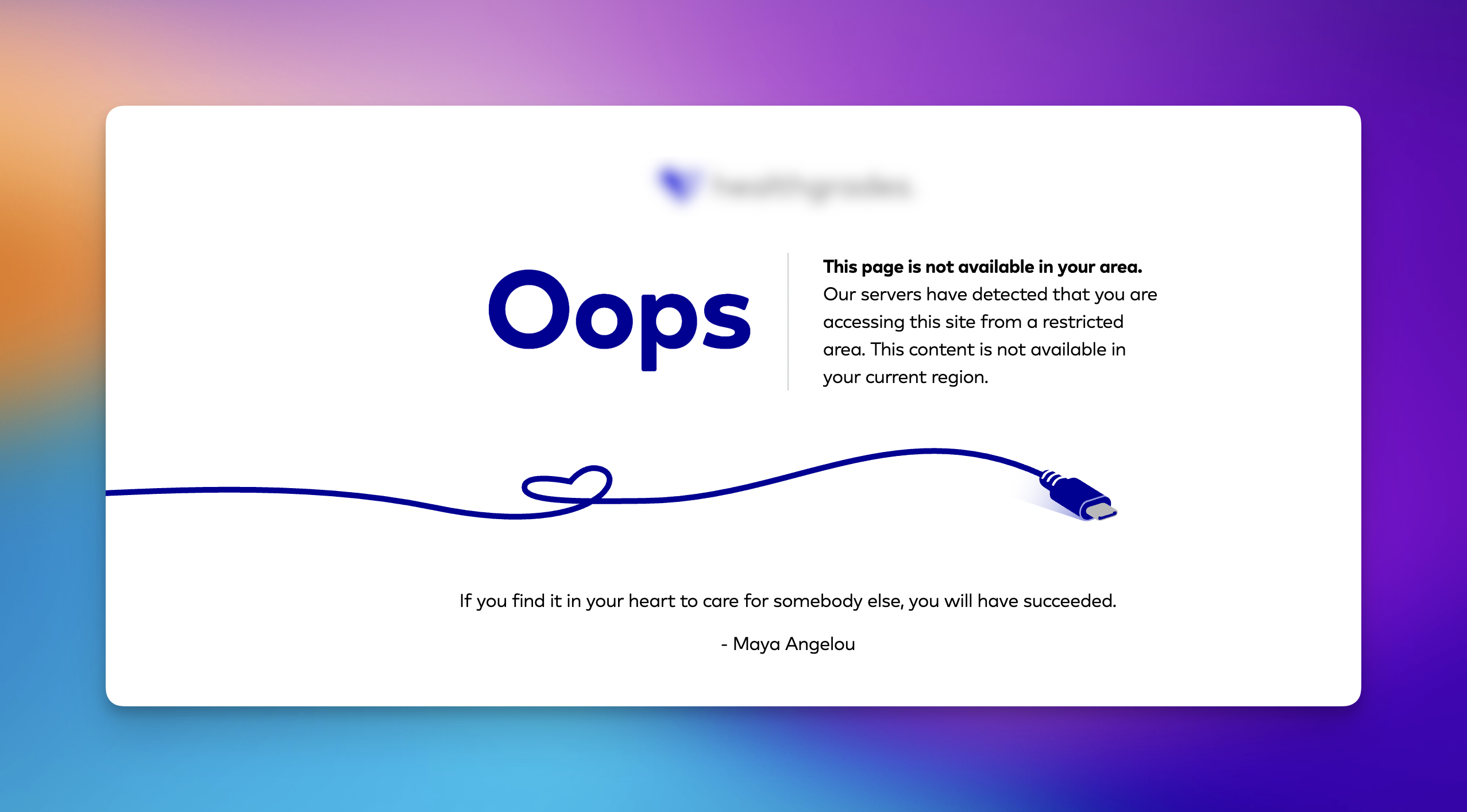
Geographic Restrictions: Some platforms or specific integration features may not be available in certain regions due to local data regulations or service limitations.
Session Timeouts: If the dashboard remains open for an extended period without activity, the integration field may fail to process the new link.
Verify Regional Access - If the website is not available in your area, ensure you are not using a VPN that points to a restricted region. If you are traveling or working remotely, try connecting through a stable, local network.

Validate the Profile URL - Navigate to the specific directory (such as Glassdoor) and search for your business as a member of the public would. Copy the URL only when you are viewing the actual company overview page. Ensure the link is complete and does not contain extra characters at the end.

Refresh the Dashboard - If you encounter an error while clicking the Integrate button, log out of your account and log back in. Navigate back to the Integrations tab under Settings and attempt to paste the link again. This clears any temporary session errors.
Re-establish the Connection - If a previously working integration stops syncing:
From the main dashboard, go to 'Settings' and click 'Integrations' tab.
Locate the active platform and select the option to remove or disconnect it.
Search for the platform again and follow the original setup steps to paste the profile link and click 'Integrate'.

Use this quick checklist to rule out the most common technical barriers:
URL Accuracy: Does the link lead directly to your public business profile?
Public Visibility: Can you open the profile link in a private/incognito window without logging in?
Maintenance Check: Is the HiFiveStar dashboard or the third-party site currently under maintenance?
Region Check: Are you accessing the dashboard from a supported region without a restrictive VPN?
Session Freshness: Have you tried logging out and back in to refresh your dashboard session?
Browser Cache: Have you cleared your browser cookies or tried a different browser?
Integrations Explained
Maximizing Your Online Presence with HiFiveStar's Platform Integrations