Adding your Yellowpages profile link puts Yellowpages on your HiFiveStar review page, so customers can go there to leave a review. HiFiveStar does not import Yellowpages reviews yet. Follow this guide to add your link.
This video shows our previous app. The written steps on this page describe the current one.
Follow these specific steps to add your Yellowpages profile.
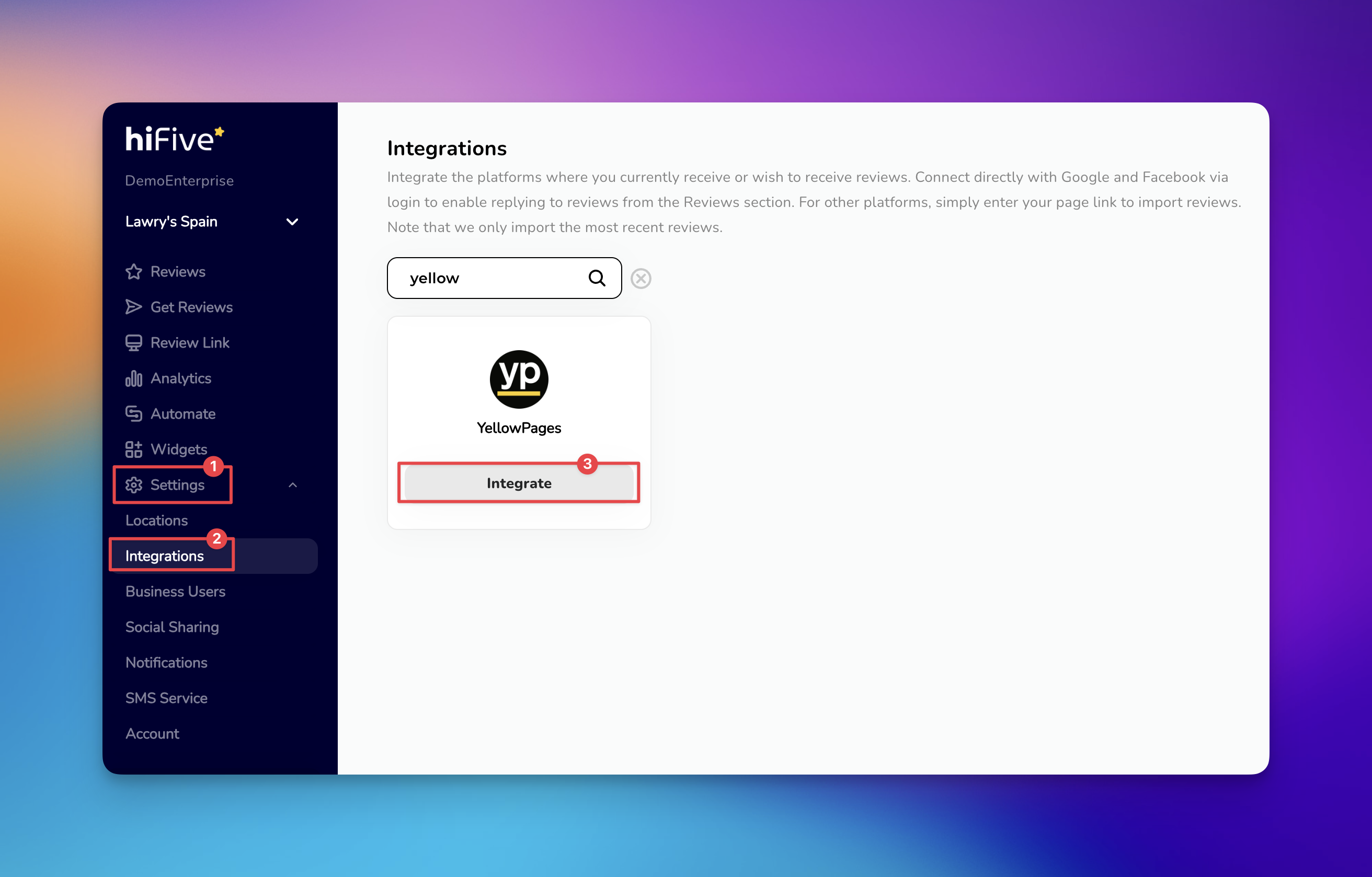
Access the Dashboard - Log in to your HiFiveStar account using your registered email and password. This opens the main business overview where you manage your locations.
Open Business Settings - Select the 'Settings' option from the main menu. This area houses all the configuration tools for your specific business profile.
Enter the Integrations Area - Locate the 'Integrations' section. This tab lists all the platforms and review sites you can add.
Locate Yellowpages - Scroll through the list of service providers or use the search tool. Type "Yellowpages" into the search bar to highlight the correct platform.
Initiate the Connection - Click the 'Integrate' button to trigger a prompt asking for your public business listing information.
Provide Your Profile URL - Copy the web address of your specific Yellowpages business page and paste it into the empty text field.
Finalize the process by clicking the 'Integrate Yellowpages' button.
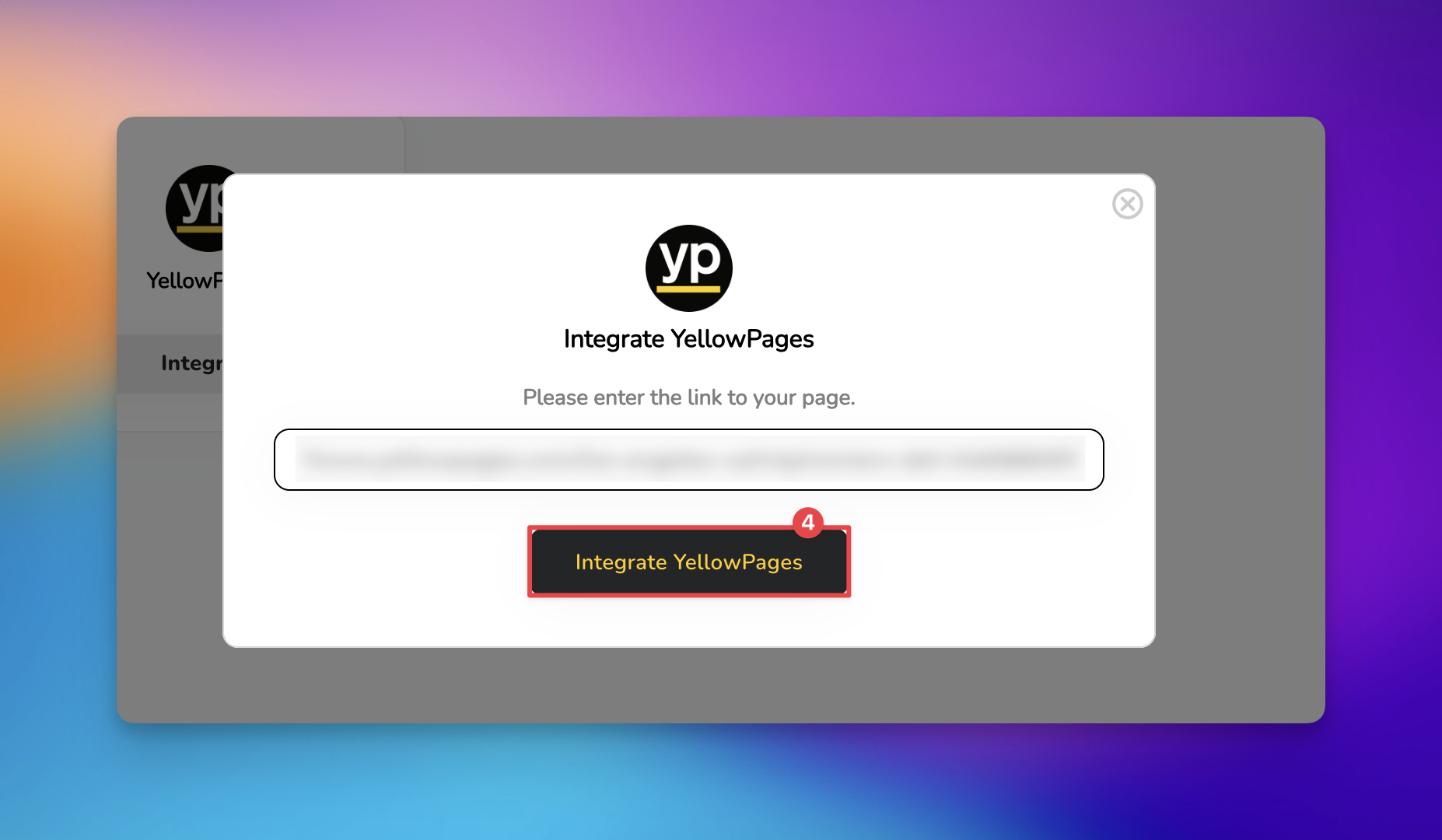
Once the setup is complete, Yellowpages appears on your review page. New Yellowpages reviews do not show up in your dashboard, because HiFiveStar does not import them yet.

If the integration does not activate immediately, check the following common points of failure:
Invalid URL Format: Ensure the link starts with https://www.yellowpages.com/ and leads directly to your business page, not a login screen or a map view.
Privacy Settings: Verify that your Yellowpages listing is set to "Public." Customers cannot open private or hidden listings from your review page.
Browser Cache: If the Integrate button appears unresponsive, try clearing your browser cookies or attempting the process in an incognito window.
Search and Filtering Reviews in HiFive
How to search and filter your reviews