We know how important Avvo is for your practice. Adding your Avvo profile link puts Avvo on your HiFiveStar review page, so clients can go there to leave a review. HiFiveStar does not import Avvo reviews yet.
This guide walks you through adding your Avvo profile.
This video shows our previous app. The written steps on this page describe the current one.
Open the HiFiveStar login portal and sign in using your account credentials. This will bring you to the main interface where you manage your business reputation.
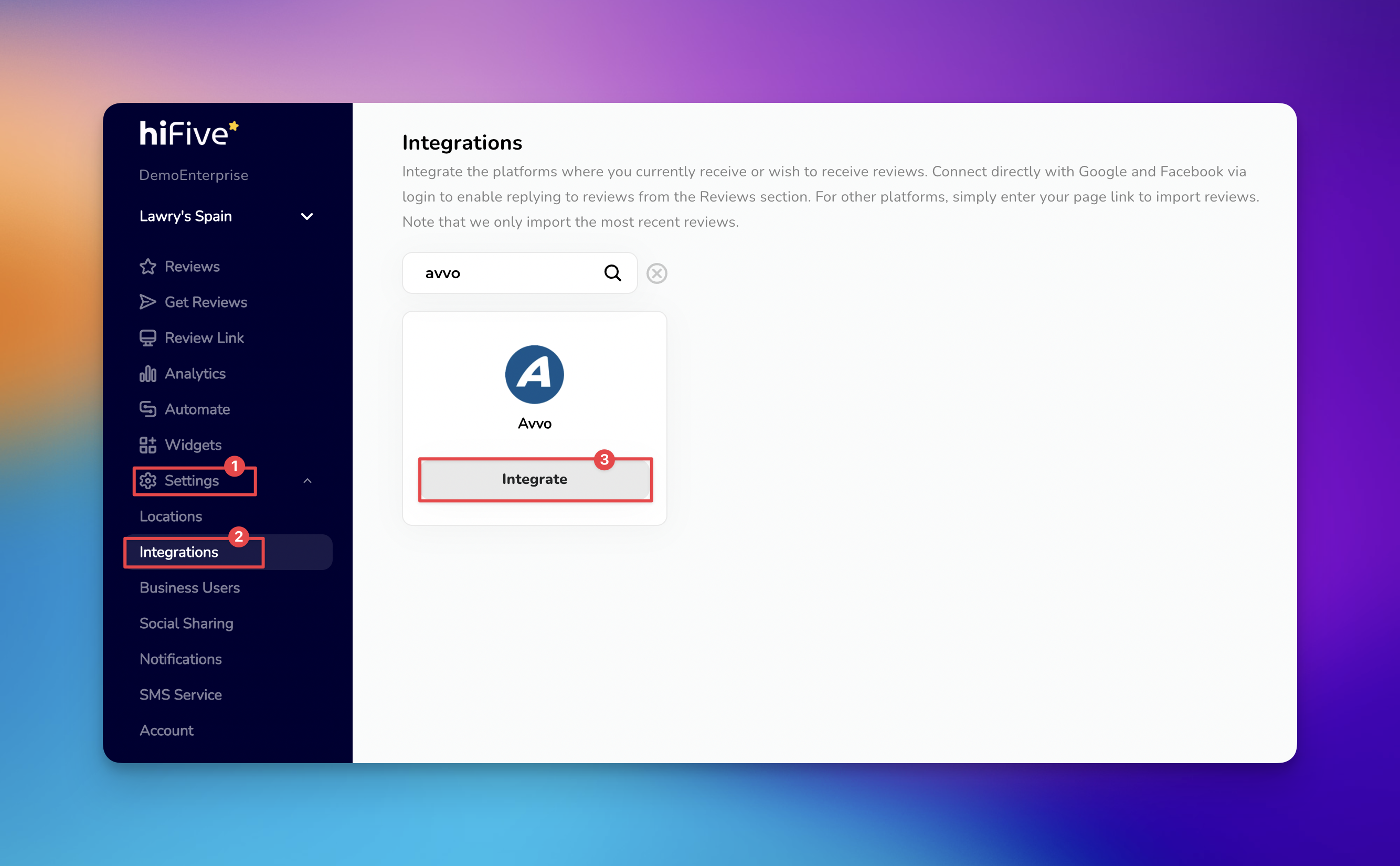
Look for the option labeled 'Settings' in the main navigation area. This section contains the configuration tools for your account.
In the settings area, find and click the category for 'Integrations'. This page lists all the platforms you can add.
Scroll through the list of service providers or use the search function to find Avvo. Typing the name into the search bar is the quickest way to highlight the correct choice.
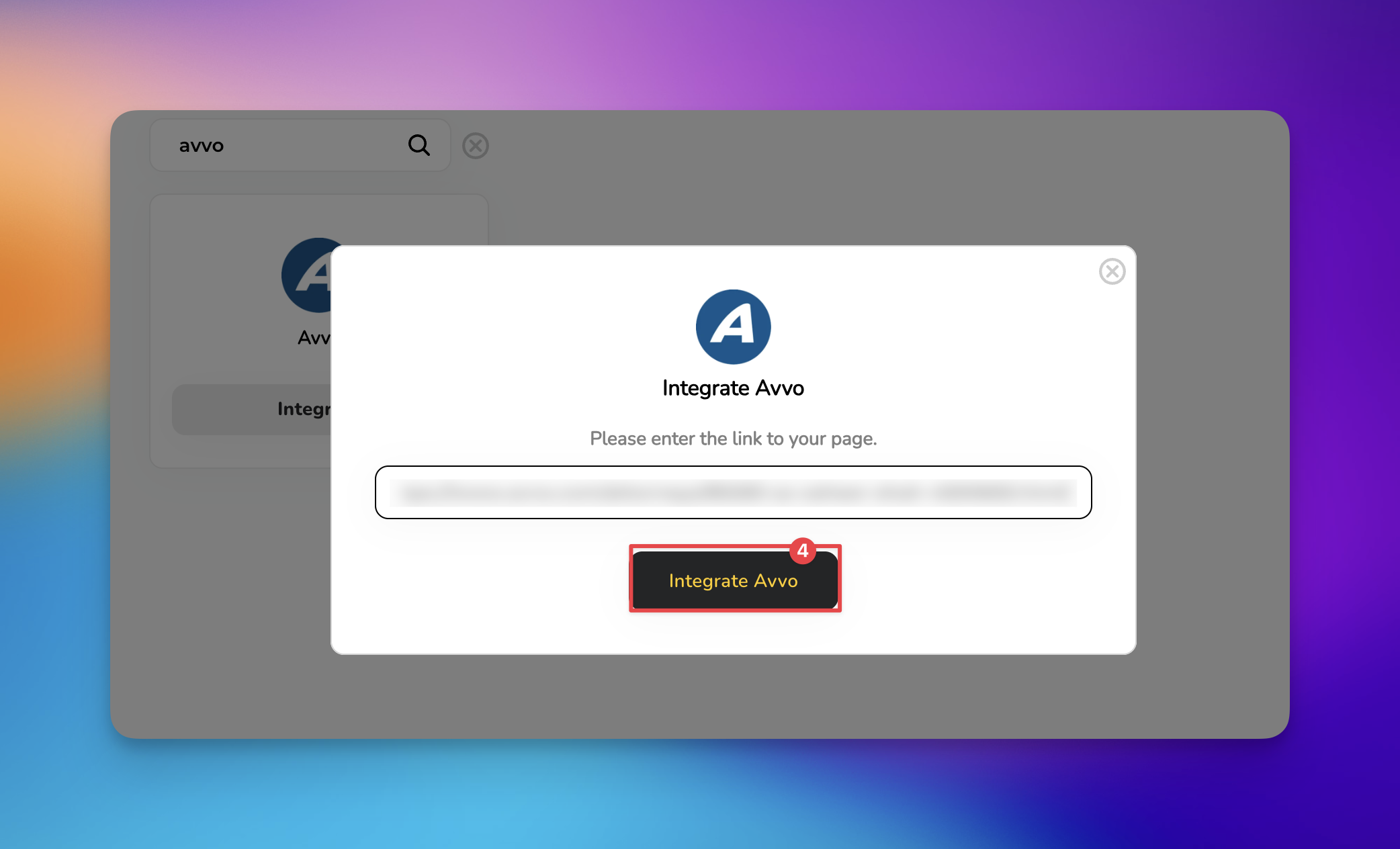
Once Avvo appears in the results, choose the 'Integrate' button. A prompt will appear asking for the specific web address of your Avvo professional profile.
Paste your profile link into the designated slot and click button 'Integrate Avvo'. HiFiveStar saves the link and adds Avvo to your review page.
Now Avvo appears on your review page. Reply to Avvo reviews on Avvo itself. If you run into any issues during the setup, our support team is available to help you get everything back on track.

Connecting this specific platform is a strategic move for legal professionals. Avvo is a primary resource for clients searching for legal counsel, so sending happy clients there can strengthen your profile.
Check Profile Visibility Confirm that your Avvo profile status is set to "Public." Clients cannot open a private or hidden profile from your review page.
Verify the Profile URL Ensure the web address you provide includes your specific professional name or firm ID. A generic link to a legal category or a search results page will not send clients to your profile.
Address Button Errors If the "Integrate Avvo" button is grayed out, paste your link into the field first; the button stays grey while the field is empty.
Search and Filtering Reviews in HiFive
How to search and filter your reviews
Managing Reviews
Elevating Your Business with Advanced Review Management