
Managing your subscriptions and keeping track of your business expenses is simple with our integrated billing system. Whether you need to file taxes or track your monthly spending, you can open and download your invoices from the Billing screen inside the app.
How to Download Your Invoices
Follow these steps to access and download your billing documents:
Log in to your HiFiveStar account.
Click Billing at the bottom of the menu on the left (on a phone, More › Billing; in the classic look, 💳 Billing).
Find the invoice in the Invoices card. Each one shows its date, amount and status.
Click PDF to download the invoice, or click View to open it on Stripe's secure page.
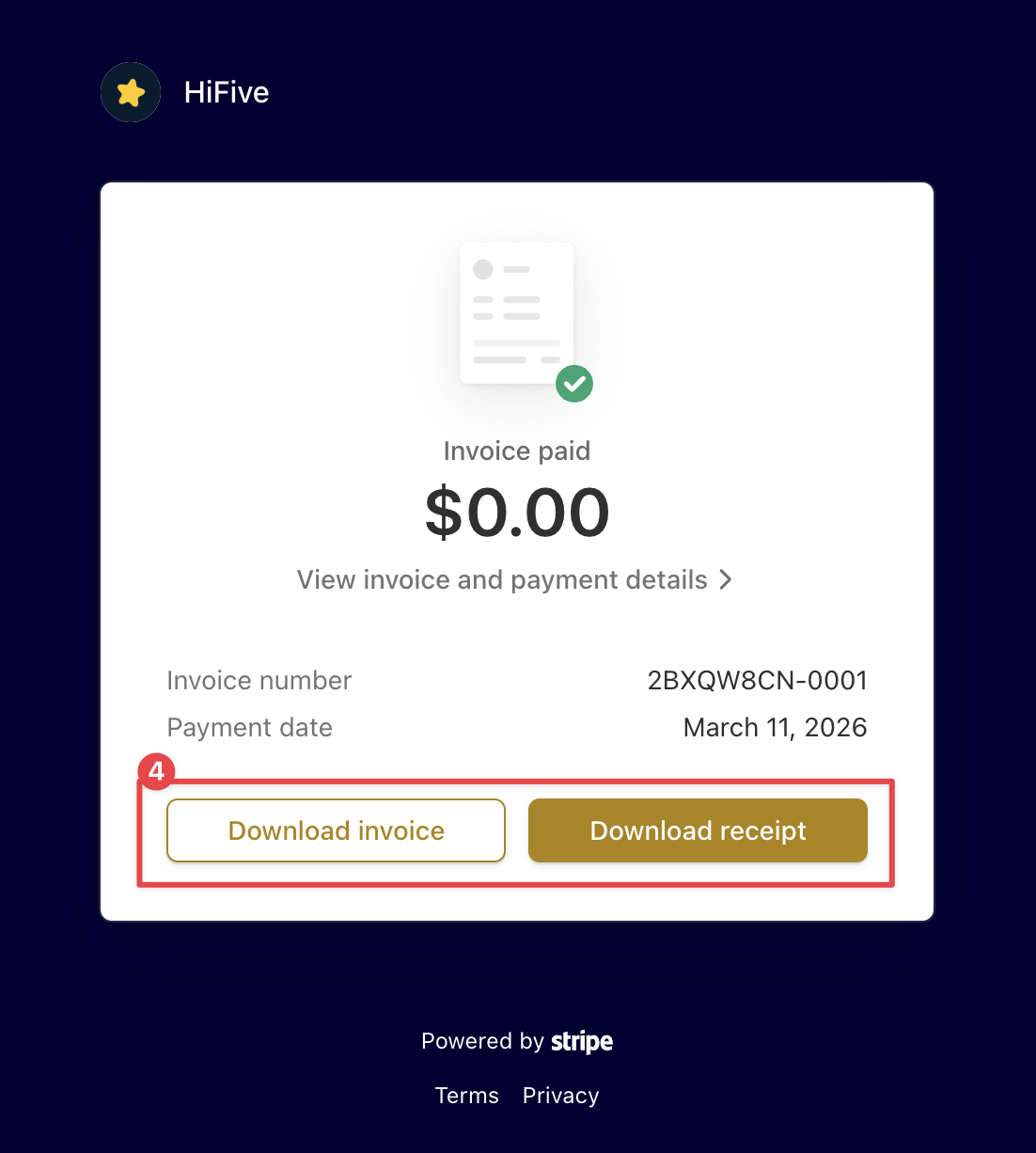
On that page, select Download invoice or Download receipt to save the file to your computer.
Managing Billing Information
To change your card, click Update card on the Payment method card. This opens Stripe's secure card form. The new card is used for future invoices; invoices already issued do not change.
Payment Status and History
The Invoices card shows the status of each invoice: Paid, Due, Void or Unpaid. The receipt is available once an invoice is paid. The card lists your 12 most recent invoices; for an older one, ask us in the chat or at [email protected].
Subscription Adjustments
If you need to change your plan level, click Change plan on the Your plan card. This allows you to scale your services up or down based on your business needs.
Support and Resources
Accessing your financial documents is designed to be a seamless experience. If you need help with an invoice, our team is here to help in the chat or at [email protected].
Related Articles
HiFiveStar Plans Explained
Get an overview of how HiFiveStar's plans work and what's included.